

Handbrake - Smaller files, faster upload
Uploading clips to the site is pretty straightforward. In order to save server load and make it easier to stream, you should optimize the clips before uploading. We can easy solve this by using a handy tool called HandBreak. Download it here.
Once installed, open HandBrake and follow the steps below.
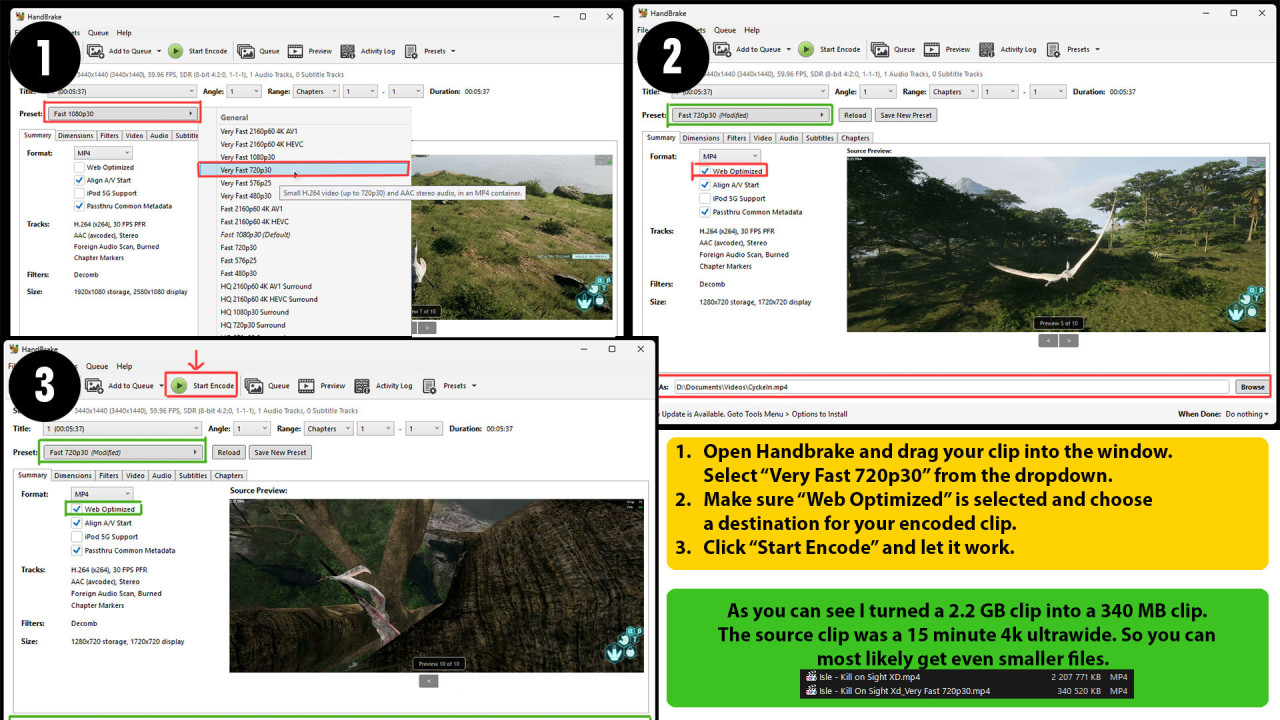
- Drag your clip onto the window. Select ‘Fast 720p30’ from the Preset dropdown. 720p and 30 fps is good enough for proofing.
- Tick the ‘Web Optimized’ box so that it is selected and choose your save location at the bottom.
- Click the big ‘Star Encoding’ button at the top and let it work.
In the image reference below, you can see that we turned a 2.2 GB 4k video file into an 340 MB 720p file. This video in particular was 15 minutes long, so quite a drastic change.
With clipping software often clipping 1-5 minutes, you can get you clips (even 4k) below 100 MB and still be usable.
Once encoded, go ahead and upload the file to the website and share with server mods using the links below the video.



Comments (0)